One dashboard for your AI context
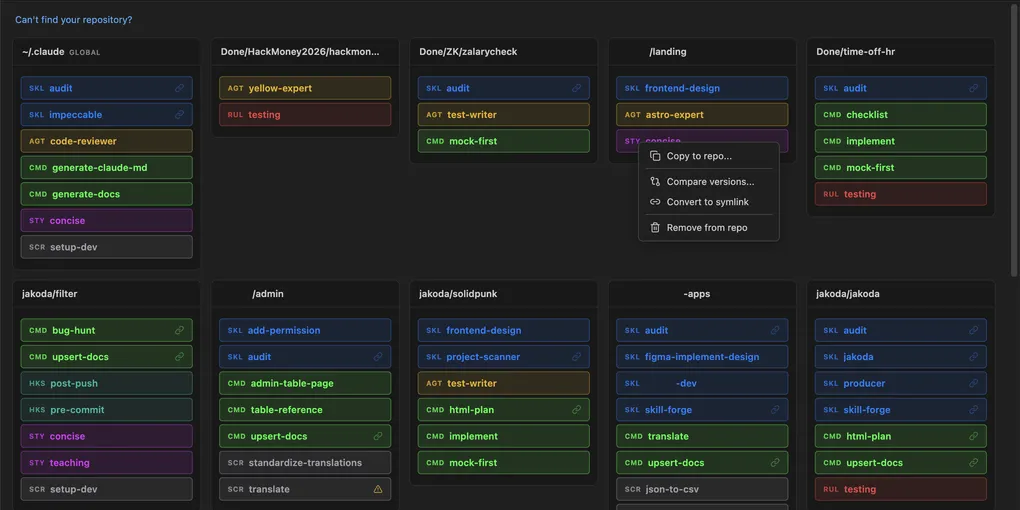
I have fourteen repos with .claude/ directories. Skills, rules, commands, docs, the context that shapes how the AI agent behaves in each project. Some repos also have .cursor/ settings. A few have .github/copilot-instructions.md. Last month I wrote a skill that cut my review cycles in half and copied it into three projects. The other eleven still run without it.
Which repos have the latest version? Which configs have drifted? I didn’t know. There was no way to see it.
I stopped refining prompts and started refining context
A few months ago, the only feedback I kept getting was: refine your context. Working with AI has been like climbing a staircase. At the bottom, I focused on writing better prompts, concise, with examples, analogies, clear paths. That worked for short tasks. But as I got more confident assigning complex work with less hand-holding, something shifted. It wasn’t just the tech getting better. I had learned how to set the agent up for success before it wrote a single line.
Now I refine context files more than code. Every iteration, I evolve the docs, the skills, the rules, and the agent’s output improves with them. That’s the real unlock. Not a better model. Better context.
But it created a new problem. Fourteen repos, dozens of assets, different versions everywhere, no way to tell what’s current and what’s stale. I was managing AI context the same way people used to manage dotfiles before version control, manually, badly, and with a growing sense that something important was out of sync.
Why not a CLI?
There are CLI tools for managing agent configs. I tried a few. They work, but they miss the point. When you have assets scattered across fourteen repos, you don’t need another command to memorize. You need to see everything. One glance. Which repos have which skills. Which copies match. Which ones drifted.
I wanted something that a developer could open and immediately understand, no docs to read, no flags to learn. Something that would push developers to treat their AI context as a managed system, not a pile of markdown files they copy-paste between projects.
So we built Lattice.
One board, every repo
Lattice is a VS Code extension. It scans every repository in your workspace and lays out all AI agent context on a single visual board, skills, commands, agents, rules, docs, settings. Color-coded by type, grouped by repo.
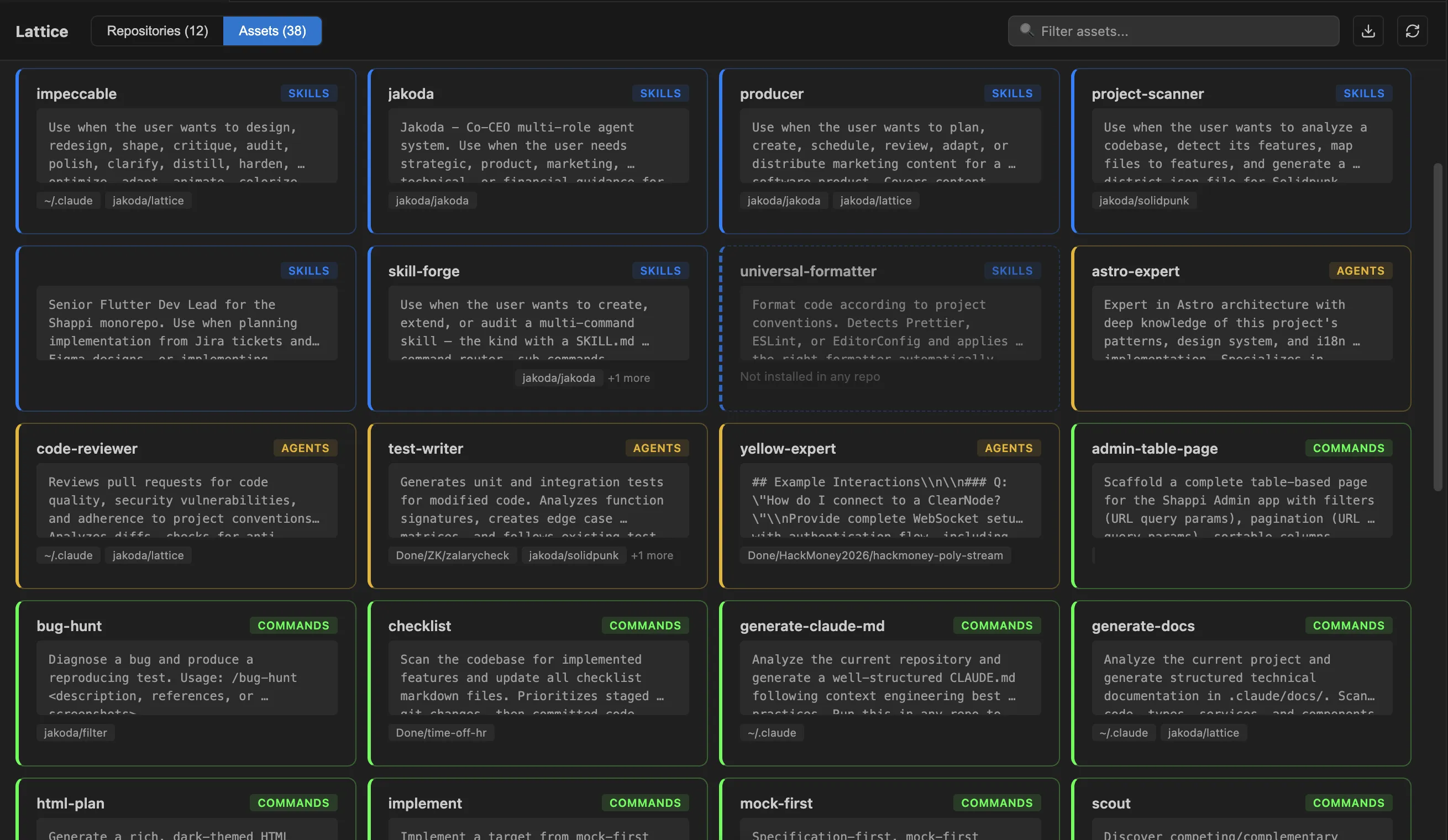
Switch to the Assets view to see every skill and config across all repos with its description. One glance tells you what exists where.
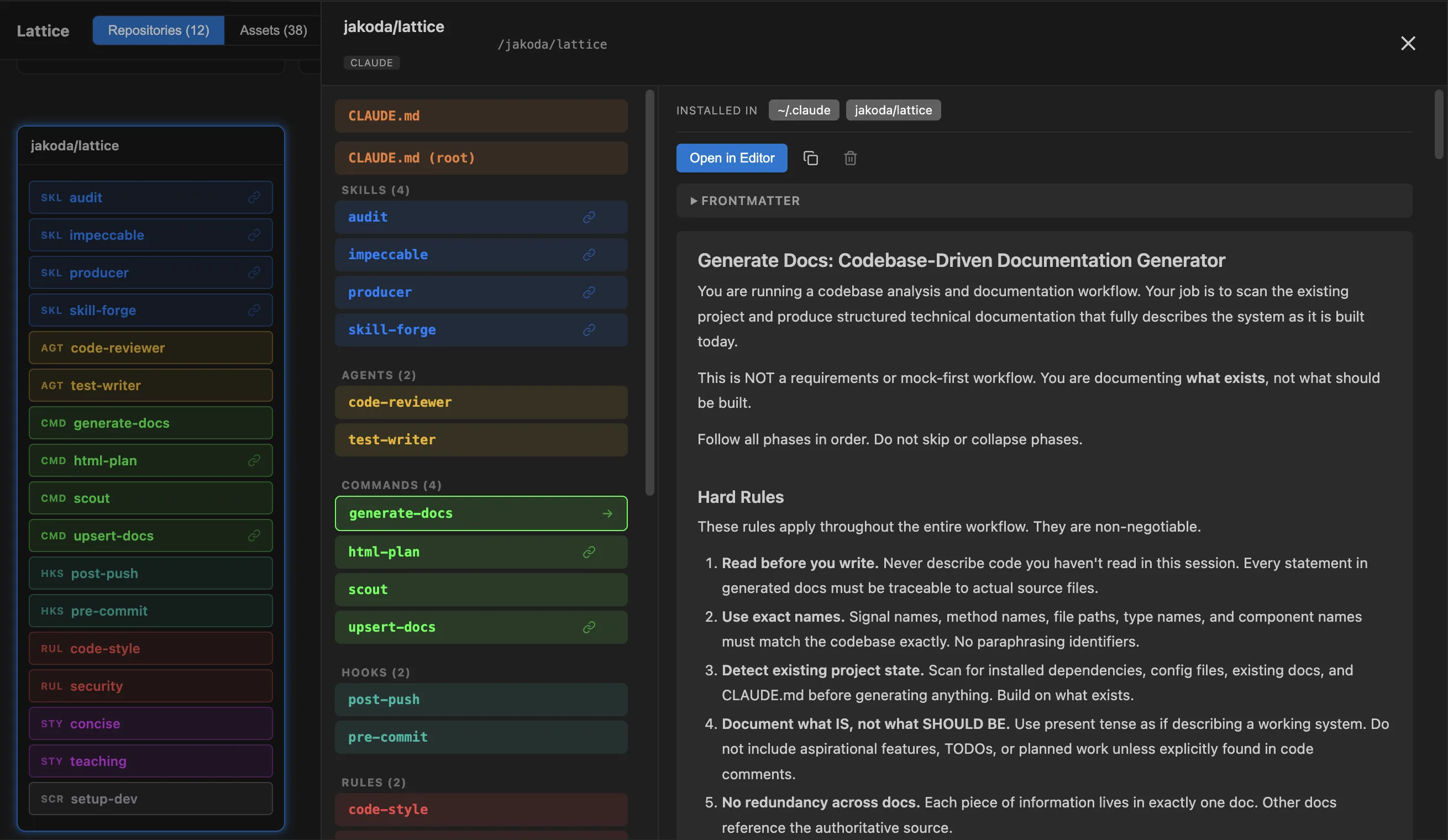
Drift detection without diffing. Lattice hashes file contents with SHA-256. When the same skill exists in multiple repos, you instantly see which copies are identical and which have diverged. No terminal, no manual comparison. Click any asset to open the detail panel, file list on the left, full markdown preview on the right.
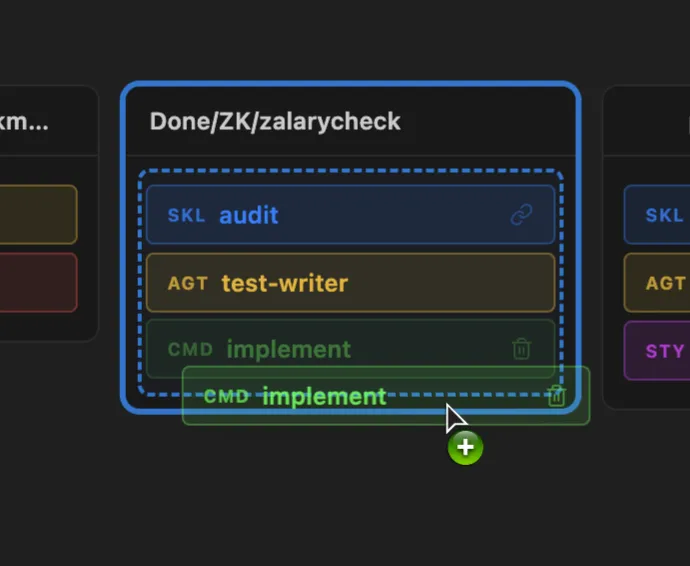
Move things where they belong. Drag a skill from one column to another. The blue indicator shows exactly where it’s landing.
Right-click to copy to multiple repos at once. Or convert to a symlink pointing to a canonical ~/.assets path, update the source, and every repo gets the change. This is the one I use most. Fourteen repos, one source of truth.
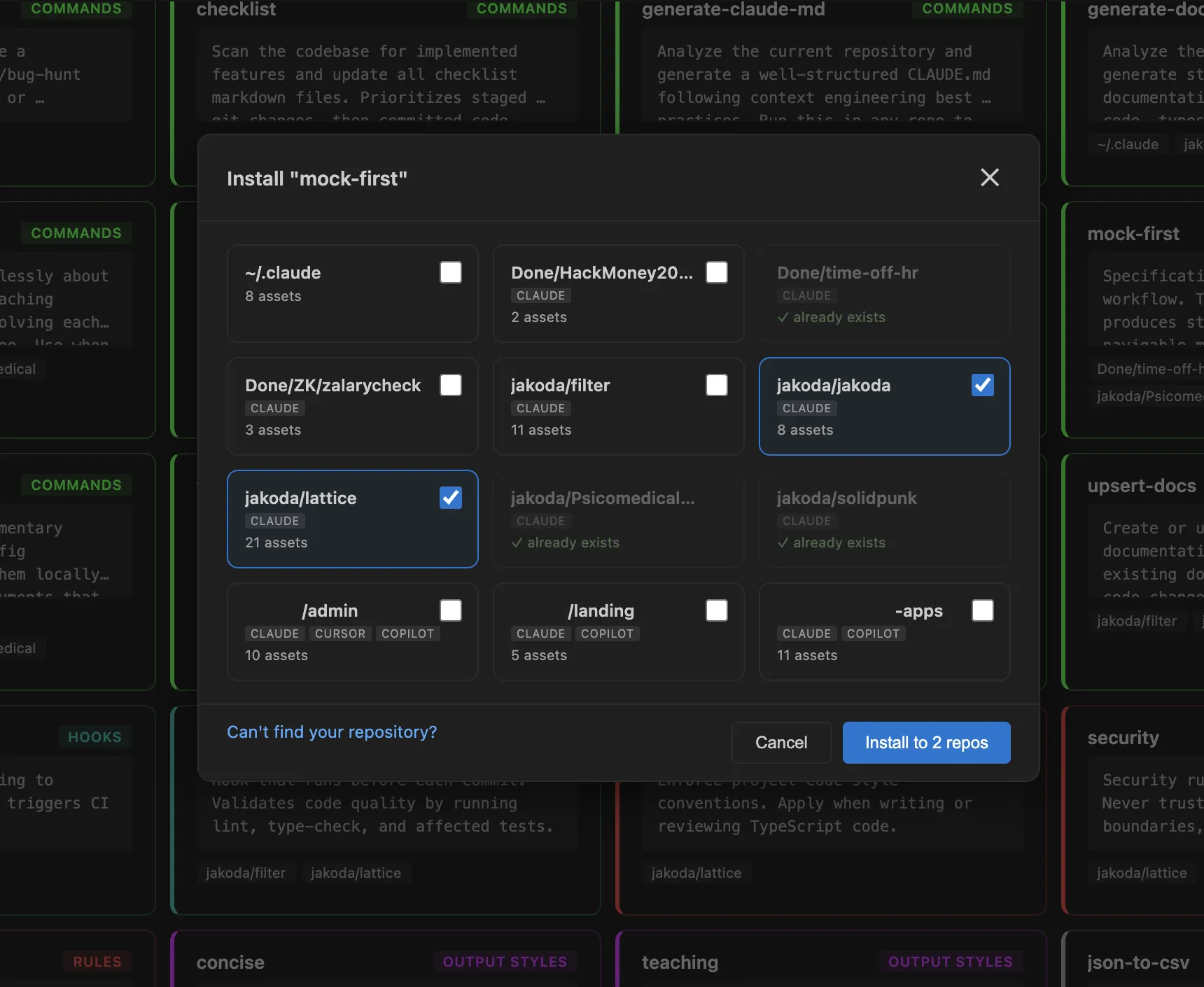
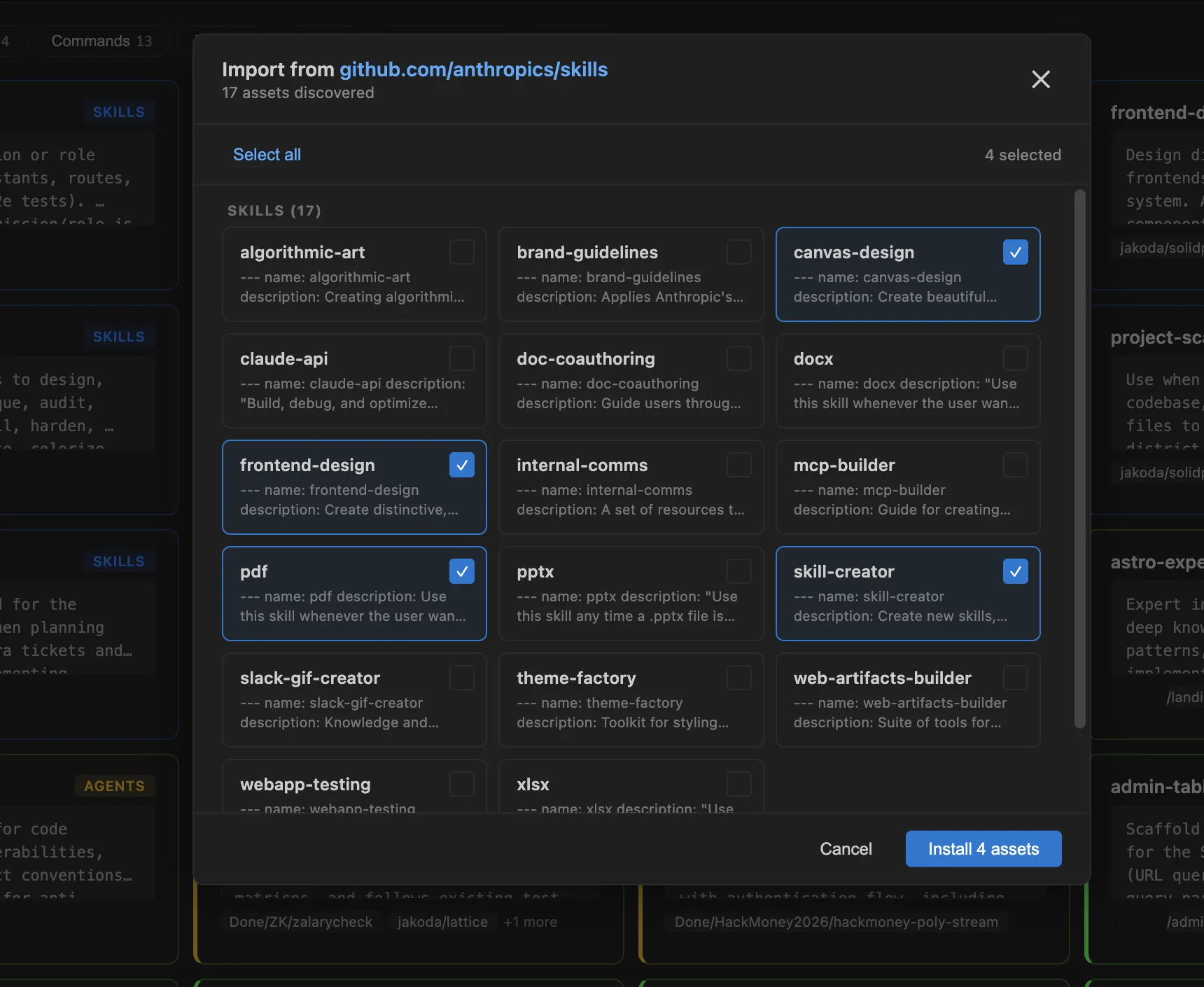
Import from GitHub. Paste a GitHub URL, install a skill or command directly into selected repos. No cloning, no manual extraction.
What it tracks
Lattice detects and manages these context types across all your repos:
| Type | Source directory | What it is |
|---|---|---|
| Skill | .claude/skills/ | Reusable skill directories with SKILL.md |
| Command | .claude/commands/ | Slash command templates |
| Agent | .claude/agents/ | Agent configuration files |
| Rule | .claude/rules/ | Project rules and constraints |
| Doc | .claude/docs/ | Reference documentation |
| Settings | .claude/settings.json | Claude Code settings |
| CLAUDE.md | Root | Project-level instructions |
Each type is color-coded on the board. Your global directories, ~/.claude/, ~/.cursor/, ~/.github/, appear alongside repo-level configs. Everything in one view.
The fourteen-repo problem, solved
Open Lattice. Fourteen columns appear. I see the skill I wrote last month, three repos have it, eleven don’t. I drag it to the eleven. They all show the same SHA-256 hash. Done.
Managing AI context across repos shouldn’t require a spreadsheet or a ritual of cp -r commands you run at midnight. It should look like a dashboard. That’s what Lattice is.
If you’ve reached the point where you refine context files more than prompts, where your AI workflow lives in skills and rules, not one-off instructions, you already feel this friction. Lattice makes it visible and puts it under control.
Open VS Code, search “Lattice Context Manager”, install, and open the dashboard from the status bar.